December 5, 2025 - marioagency
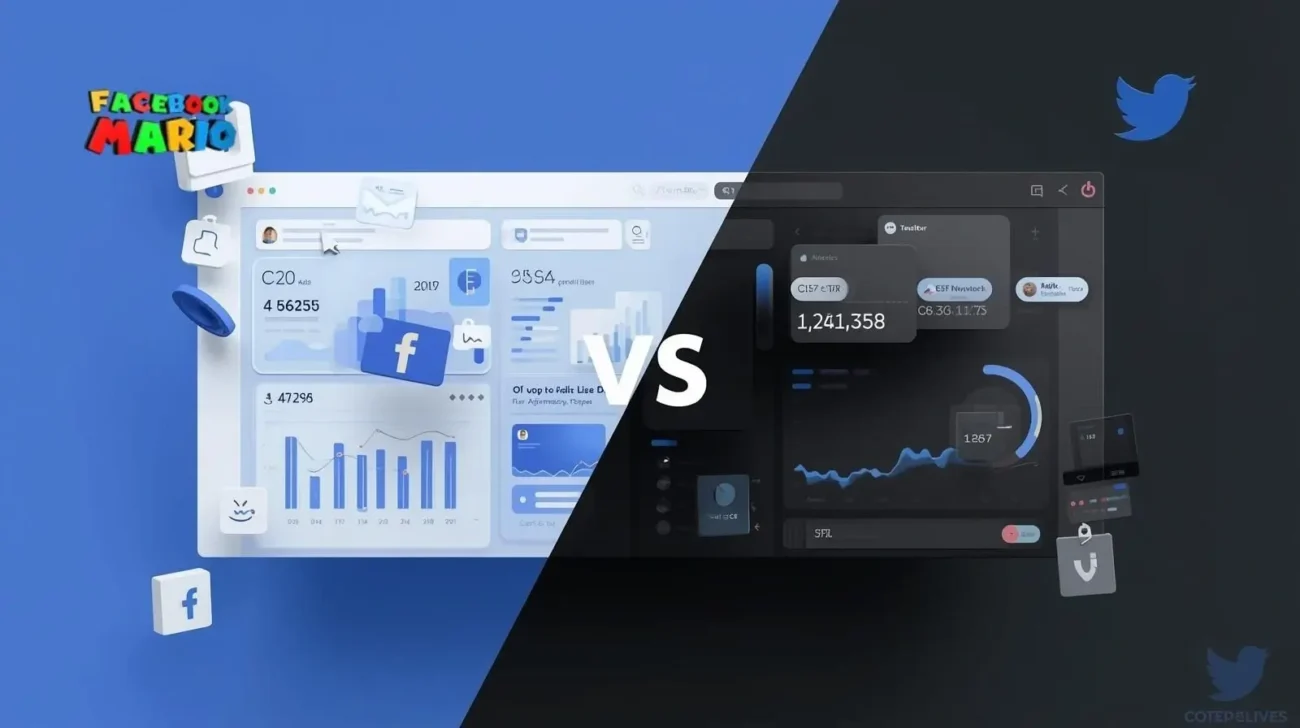
Advertising Facebook vs Twitter comparison showing Facebook Ads dashboard vs Twitter Ads dashboard in a split-screen design

Advertising Facebook vs Twitter: Which Platform Is Better for Your Brand?
🔥 Our Telegram channel, be sure to subscribe! t.me/facebookmarioreview

Advertising Facebook vs Twitter: Which Is Better?

Facebook and Twitter—also known as X—remain two of the strongest social media platforms for advertising and audience engagement. Both networks transformed how people communicate, discover brands, and interact with content. But one question stands out: In the battle of advertising Facebook vs Twitter, which one actually performs better?

The answer?
It depends on your goals, your budget, and the audience you want to reach.

Some brands need deeper community engagement through visuals, while others require real-time conversations driven by trending topics. Some campaigns demand micro-targeting, while others focus on instant visibility.

In this blog, we evaluate advertising Facebook vs Twitter, compare features, analyze ad costs, discuss AI-NLP advantages, and help you choose the right platform.

Ready? Let’s dive in with Mario Agency.

Analysis: Advertising Facebook vs Twitter

Although both platforms fall under the same category—social networks—their ad systems serve different purposes.

✔ Facebook (Meta) reaches over 3 billion users monthly
✔ Twitter/X reaches around 350+ million active users monthly
✔ Facebook is built for detailed targeting, visuals, and community networks
✔ Twitter is designed for real-time updates, trending topics, and instant conversations

So when comparing twitter v facebook for advertising, each offers unique strengths depending on campaign objectives.

Facebook: A Full-Funnel Advertising Powerhouse

Facebook stands out as one of the most advanced advertising ecosystems. Brands can target users through countless data points: age, interest, behaviors, device, digital activities, and purchase intention.

Why Facebook Works Well for Ads

  • ✔️ Highly advanced audience segmentation
  • ✔️ Rich creative formats (images, stories, reels, videos, carousel, lead ads)
  • ✔️ Strong remarketing abilities
  • ✔️ A huge user base, suitable for all industries

Facebook also offers Marketplace, Groups, Events, and Messenger, which improves brand recall and conversions.

Because of its massive reach, Facebook vs Twitter advertising often leans in Facebook’s favor for general campaigns.

Twitter/X: A Real-Time Conversation Platform

Twitter is designed for fast communication. Every tweet is limited, concise, and built for instant interaction.

Why Advertisers Use Twitter

  • ✔️ Ideal for live events & trending topics
  • ✔️ Faster audience reactions
  • ✔️ Perfect for brands looking for “moment marketing”
  • ✔️ Strong for PR, announcements & viral campaigns

Its minimalistic interface supports real-time conversations, giving brands the ability to respond instantly.

When comparing twitter versus facebook, Twitter wins in speed, simplicity, and trend-based reach.

User Demographics: Twitter vs Facebook

Facebook Audience

  • ✔️ All age groups
  • ✔️ Strong presence among older and middle-aged users
  • ✔️ Perfect for businesses needing wide demographic reach

Twitter Audience

  • ✔️ Younger audience (18–34)
  • ✔️ Highly educated, tech-ready, trend-driven
  • ✔️ Perfect for brands targeting news, entertainment, politics, fintech, crypto, and real-time discussions

So choosing between twitter vs fb depends on who your brand wants to reach.

Content Types & Engagement: Facebook to Twitter vs Twitter to Facebook

Facebook

  • ✔️ Best for visual storytelling
  • ✔️ Long-form content allowed
  • ✔️ Strong engagement tools (Reels, Lives, Pages, Groups)

Twitter

  • ✔️ Short-form text
  • ✔️ Hashtags, threads, and trending lists
  • ✔️ Fast-paced engagement model

When analyzing twitter to facebook or facebook to twitter, Facebook wins for visuals, while Twitter wins for immediate responses.

Facebook Advertising: Targeting Power

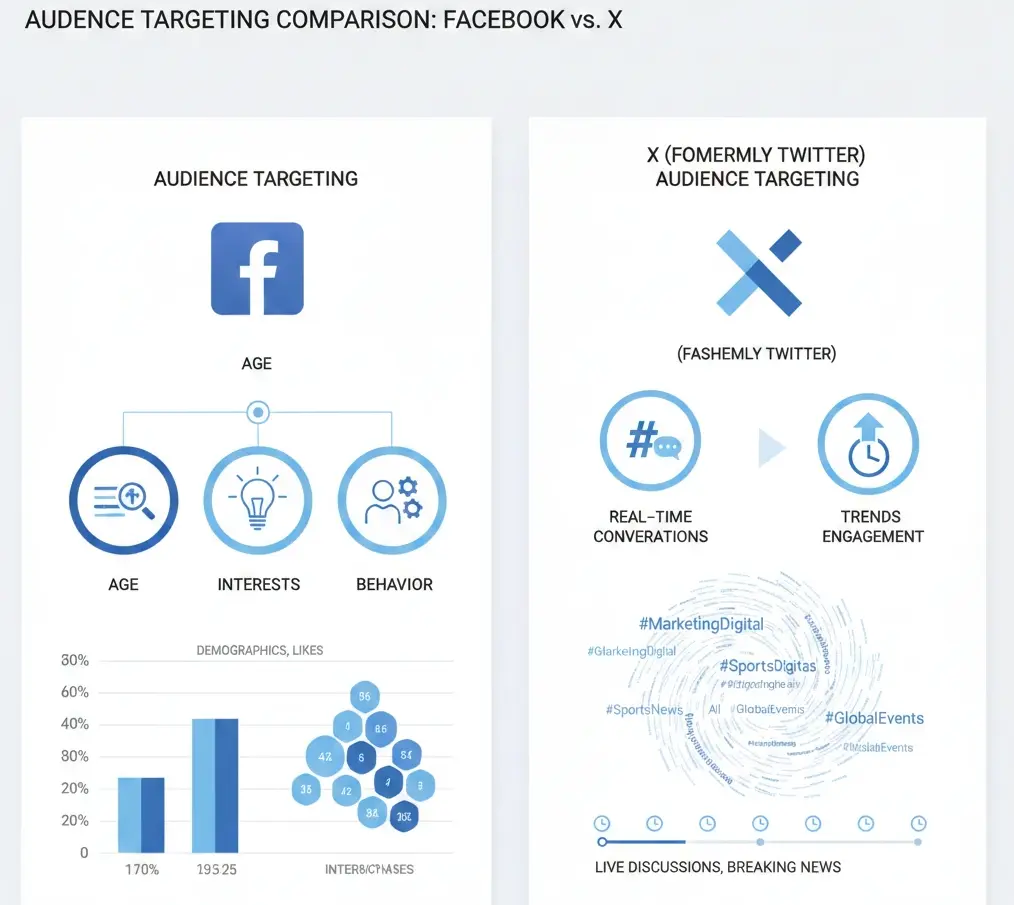
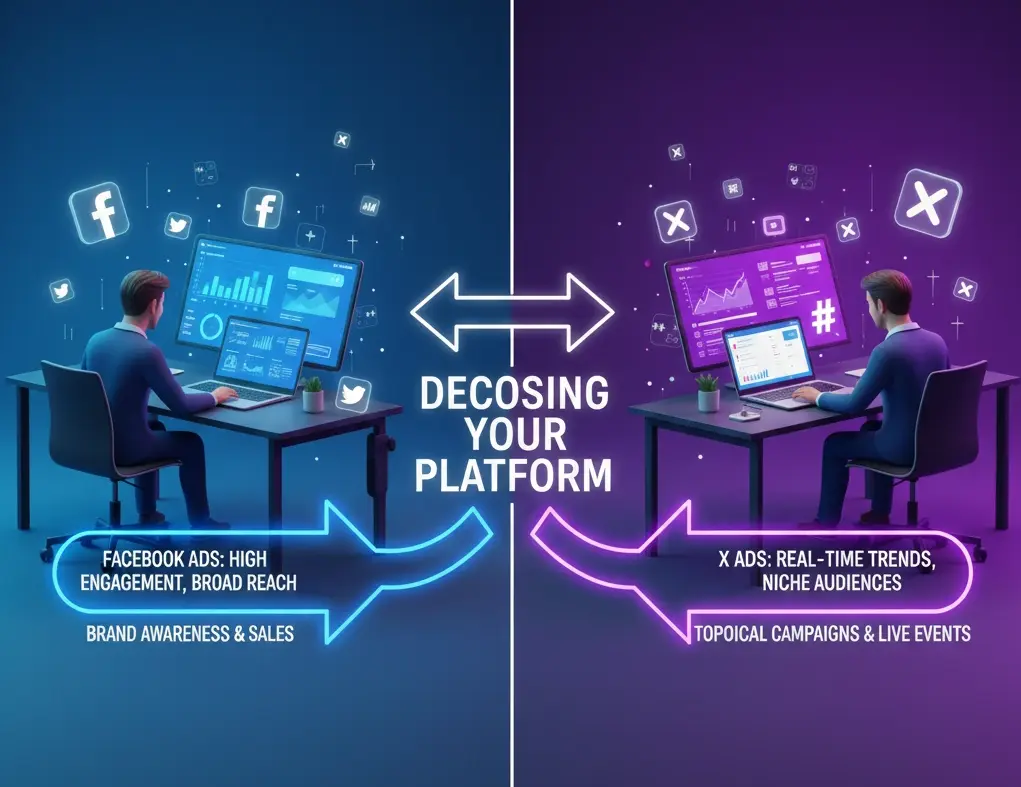
Audience targeting comparison for advertising Facebook vs Twitter with demographic targeting on Facebook and real-time trend targeting on Twitter. Audience targeting comparison for advertising Facebook vs Twitter with demographic targeting on Facebook and real-time trend targeting on Twitter.

Facebook has one of the strongest ad-targeting systems globally.

Why Advertisers Prefer Facebook Ads

  • ✔️ Micro-targeting (behaviors, interests, demographics)
  • ✔️ High conversion rate
  • ✔️ Strong pixel tracking
  • ✔️ Better retargeting than Twitter
  • ✔️ Ideal for ecommerce & lead generation

Facebook’s algorithm also uses AI-powered prediction models, improving reach and optimizing budgets automatically.

Thus, within advertising Facebook vs Twitter, Facebook dominates in personalization.
Twitter Advertising: Real-Time Reach & Trending Power

Twitter ads are designed for speed and visibility.

When Twitter Ads Perform Best

  • ✔️ During live events
  • ✔️ During trending topics
  • ✔️ During product launches
  • ✔️ During political or public discussions

Brands rely on hashtags and real-time updates to get quick traction.

For marketers analyzing twitter versus facebook, Twitter offers unmatched speed during key moments.

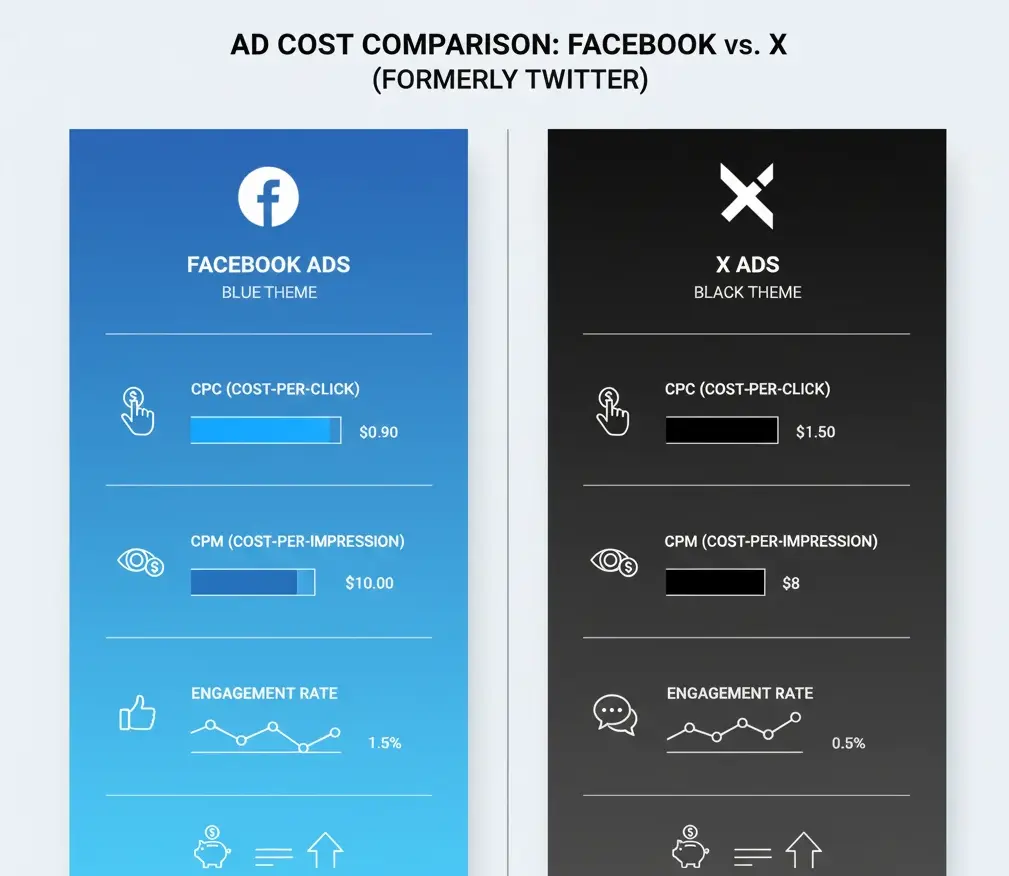
Advertising Cost: Twitter Ads Cost vs Facebook Ads Cost

Advertising Facebook vs Twitter cost comparison showing CPC, CPM, and engagement rate differences between the platforms Advertising Facebook vs Twitter cost comparison showing CPC, CPM, and engagement rate differences between the platforms

How Much Are Twitter Ads?

Twitter ad pricing varies based on competition, keywords, and event-based demand.

Typical Twitter ads cost:

  1. $0.50–$2.00 per engagement
  2. $1–$5 per follow
  3. $2–$10 per thousand impressions (CPM)
  4. $0.40–$3 per click

Many marketers ask:
How much do ads on Twitter cost?
Answer: Usually cheaper than Facebook for engagements, but more expensive for conversions.
Privacy, Moderation, and Trust

Facebook

  • ✔️ Multiple privacy controversies
  • ✔️ Stronger moderation system
  • ✔️ Better AI-driven content control

Twitter

  • ✔️ Faster spread of misinformation
  • ✔️ Limited content filtering
  • ✔️ Higher risk during political events

For reputation management, twitter is better for real-time responses, while Facebook is better for long-term community building.

Facebook Ads Cost

Facebook has higher competition due to larger advertisers, but the targeting is more precise.

Typical Facebook ads cost:

  1. $0.20–$1.50 per click
  2. $5–$12 CPM
  3. $1–$3 per lead (depending on industry)

Thus, when comparing advertising Facebook vs Twitter, Facebook is usually more cost-effective for conversions.

Unique Features: Twitter vs Facebook

Facebook

  • Marketplace
  • Events
  • Reels & Stories
  • Groups
  • Lead Ads

Twitter

  • Hashtags
  • Threads
  • Trending lists
  • Spaces (audio)
  • Instant global visibility

Each platform supports different objectives in online marketing.

FAQs

1. Which platform offers better targeting options?

Facebook offers far more advanced targeting than Twitter, including demographics, behavior, interest, and device categories.

2. How much to advertise on Twitter?

Twitter ads usually cost $0.5–$2 per engagement and $2–$10 CPM, depending on demand.

3. Is Twitter or Facebook better for B2B?

Twitter is great for real-time industry conversations, but Facebook is stronger for community-based B2B marketing.

4. Which platform gives better organic reach?

Twitter provides higher organic reach because trends and hashtags push visibility faster.

5. Which platform is better for managing brand reputation?

Twitter wins for real-time customer service.
Facebook wins for long-term community trust.

Conclusion: Choosing the Best Platform

Business choosing between advertising Facebook vs Twitter with marketers analyzing campaign performance dashboards Business choosing between advertising Facebook vs Twitter with marketers analyzing campaign performance dashboards

So when choosing advertising Facebook vs Twitter, the answer depends on your goals:

Choose Facebook if you need:

✔ Conversions
✔ Strong targeting
✔ Large audiences
✔ Ecommerce impact

Choose Twitter if you need:

✔ Real-time visibility
✔ Trend-based marketing
✔ Fast reactions
✔ Viral awareness

Both platforms have powerful features. Select the one that fits your brand’s audience and campaign objective.

Read More on @Mario Academy 

Get24/7 Instant Live support on Telegram | WhatsApp

Get Connected with us on Facebook | X | Instagram | YouTube Reddit |Pinterest | TikTok

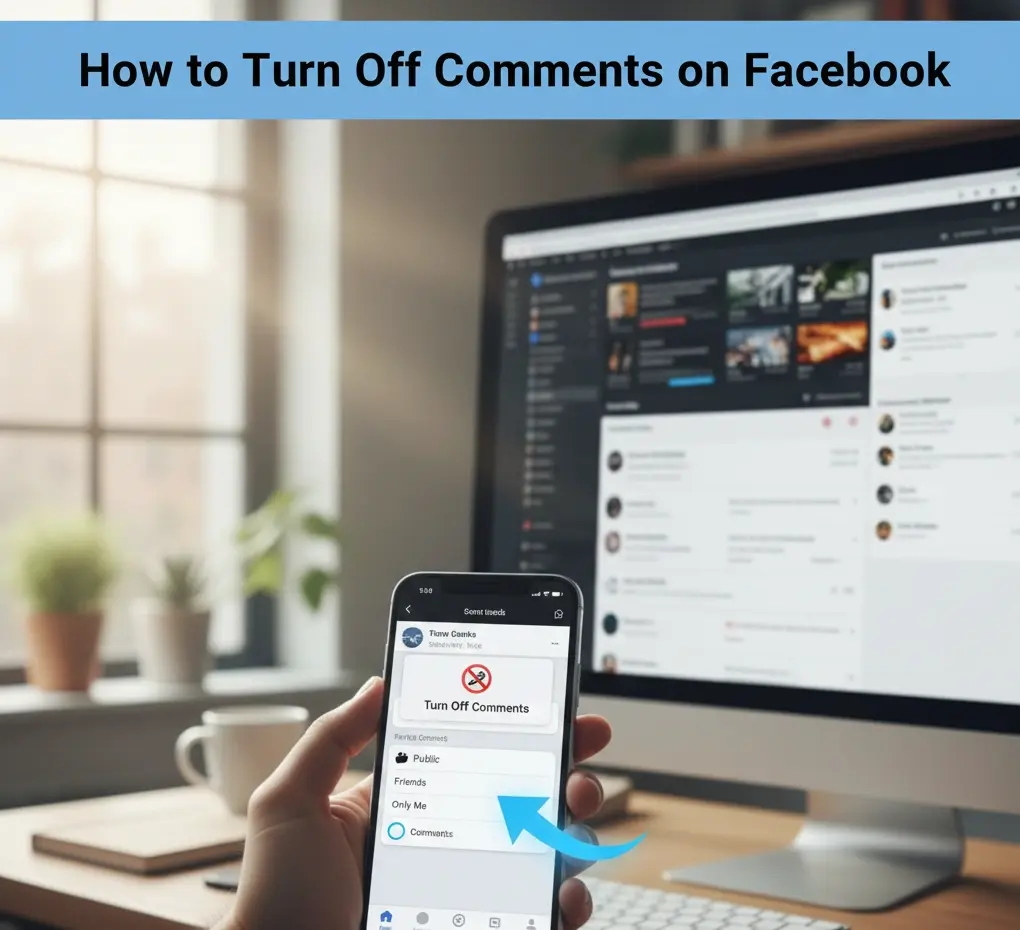
how to turn off comments on facebook post easy step
How to Turn Off Comments on Facebook Posts: A Complete Guide to Disabling & Managing Engagement

🔥 Our Telegram channel, be sure to subscribe! t.me/facebookmarioreview

Having trouble managing conversations on your Facebook posts? Whether you’re dealing with spam, unwanted interactions, or simply want to control the narrative, knowing how to turn off comments on Facebook posts is an essential skill for any user or page administrator.

This comprehensive guide will walk you through every method of disabling comments on a Facebook post, from individual posts to managing comments on your entire page or even ads. We’ll also address common issues like “why can’t I turn off commenting on my Facebook post” and provide solutions for better comment management.

Let’s dive in with Mario Agency!

Why Would You Want to Turn Off Comments on a Facebook Post?

There are numerous reasons why you might want to turn off comments on Facebook. Here are some common scenarios:

✔️ Controlling the Narrative: For sensitive topics or announcements, you might want to prevent controversial discussions.

✔️ Preventing Spam: If a post is attracting a lot of irrelevant or spammy comments, disabling commenting on a Facebook post can save you time and effort.

✔️ Limiting Engagement: Sometimes, a post is purely informational, and comments are not desired.

✔️ Managing PR Crises: In a public relations situation, temporarily turning comments off on Facebook can help manage public perception.

✔️ Focusing on Other Engagement: For specific campaigns, you might want users to engage through reactions or shares, rather than comments. Understanding these reasons is the first step in deciding when and how to disable Facebook comments.

How to Turn Off Comments on a Specific Facebook Post (Personal Profile)

If you’re looking to turn off comments on a Facebook post you’ve made on your personal profile, the process is straightforward.

For New Posts:

  1. Start a New Post: Go to your Facebook profile and click on “What’s on your mind?”

2. Compose Your Post: Write your text, add photos/videos, etc.

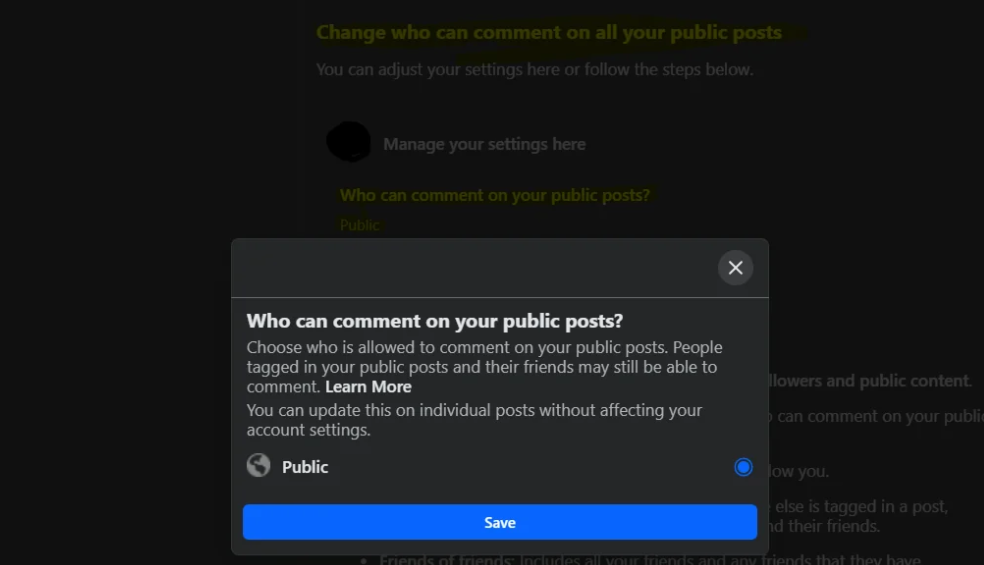
3. Adjust Audience/Comment Settings: Before clicking “Post,” look for the audience selector (usually “Friends,” “Public,” etc.). Click on it.

4. Find Comment Settings: In the audience selector, you’ll see an option that says “Who can comment on your post?”

5. Select Your Preference: You’ll typically have options like:

  • Public: Anyone on or off Facebook.
  • Friends: Only your Facebook friends.
  • Friends of Friends: Your friends and their friends.
  • Specific Friends: Handpick who can comment.
  • Profiles and Pages you mention: Only those you tag. Profiles and Pages you follow: (Less common for personal posts, more for public figures).
  • Only Me: This essentially disables comments on a Facebook post entirely, as no one else can see or interact with it.

Note: For completely turning off commenting on a Facebook post, choosing “Friends” or a more restricted option limits the audience, and thus the potential for comments. If you want no one to comment, consider limiting the post’s visibility heavily or not posting publicly.

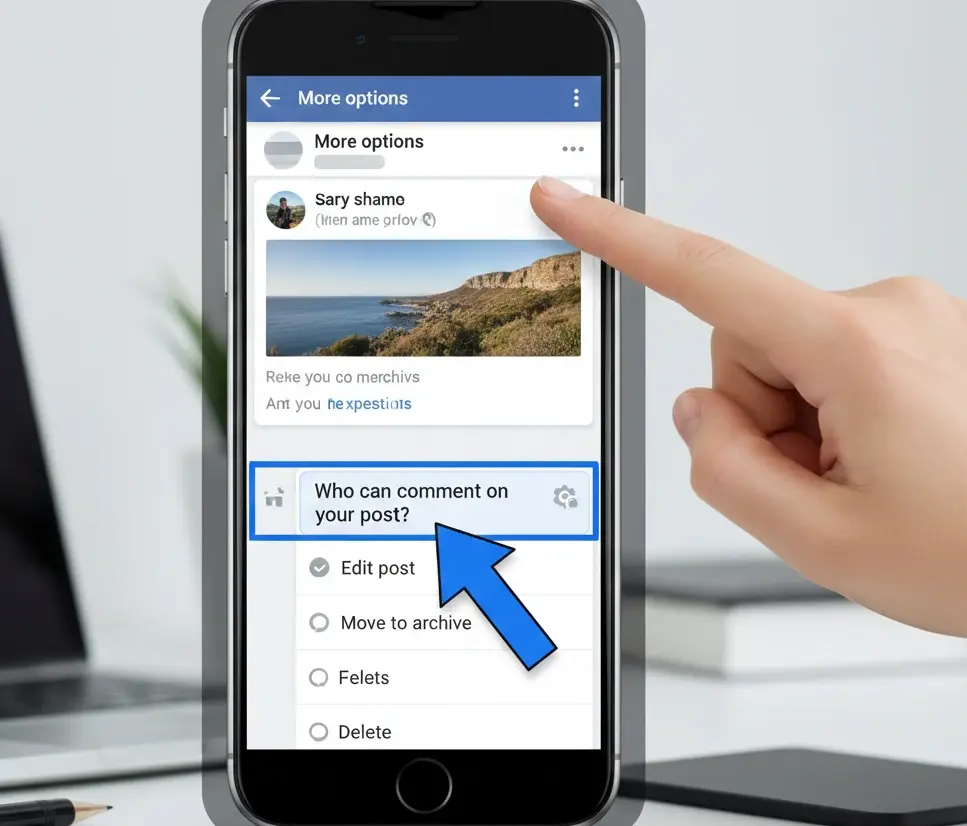
turn off comments on facebook post easy step turn off comments on facebook post easy step

For Existing Posts:

  1. Navigate to the Post: Find the Facebook post on your profile that you want to manage.
  2. Click the Three Dots (…): In the top right corner of the post, you’ll see a three-dot menu icon. Click on it.
  3. Select “Who can comment on your post?”: From the dropdown menu, choose this option.
  4. Choose Your Audience: Similar to new posts, you’ll be presented with options like “Public,” “Friends,” “Profiles and Pages you follow,” etc. Select the most restrictive option that suits your needs to stop comments on FB. For many, “Friends” or “Profiles and Pages you follow” (if applicable) is the closest to turning off comments on a Facebook post.  

Can I turn off commenting on a Facebook post completely?

For personal profiles, you can restrict who can comment, essentially cutting off general public comments. There isn’t an explicit “Turn Off Comments” button that prevents even friends from commenting on a publicly visible post, but by choosing “Profiles and Pages you follow,” you effectively limit it to almost no one for most personal posts.

How to Turn Off Comments on a Facebook Page Post

Managing comments on a Facebook Page is crucial for businesses and public figures. The process here offers more direct control.

For New Page Posts:

  1. Go to Your Page: Navigate to your Facebook Page.

2. Create a New Post: Click on the “Create post” box.

3. Compose Your Content: Add your text, media, etc.

4. Find Comment Settings (Publishing Tools / Creator Studio): Depending on your Page’s interface, you might find comment settings before publishing.

  • Sometimes, after composing, you’ll see an option like “Settings” or “Audience & Visibility” where you can adjust who can comment.

5. Post: Publish your post.

For Existing Page Posts:

This is where you have more direct control over disabling comments on Facebook posts for your page.

  1. Go to Your Facebook Page:
  2. Find the Post: Locate the specific post you wish to modify.
  3. Click the Three Dots (…): In the top right corner of the post, click the three-dot menu.
  4. Select “Who can comment on this post?”: This option should be available.
  5. Choose “Profiles and Pages you follow”: This is the most restrictive option available for Facebook Pages that will effectively turn off comments on a Facebook post for the general public and most users. Only other Pages or profiles that follow your Page will be able to comment, which for many means very few or no comments at all.

You can also choose “Public” or “Profiles and Pages you follow.”

Facebook how to disable comments? By selecting “Profiles and Pages you follow,” you are essentially turning off commenting on facebook posts for the broader audience.

Other Facebook Profile from Mario Agency 

Mario agency also offers other related marketing and social media services like Telegram marketingInstagram MarketingLinkedIn Marketing, RedditYouTube, and Twitter.


Disabling Comments on Facebook Ads

How to turn off comments on FB ads or turn off commenting on Facebook ads is a frequent question for advertisers. Comments on ads can be valuable feedback, but sometimes they can be negative, off-topic, or spammy, impacting your ad’s performance or brand image.

how to disable comments in fb how to disable comments in fb
  1. Go to Ads Manager: Navigate to your Facebook Ads Manager.
  2. Find Your Ad: Locate the specific ad campaign and ad set containing the ad you want to modify.
  3. Preview the Ad: Click on the “Edit” button for the ad.
  4. Go to Ad Preview: Look for the “Ad Preview” section, usually on the right side.
  5. Access Post Details: Click on the “Facebook Post with Comments” or similar link within the preview. This will open the actual ad post on Facebook.
  6. Click the Three Dots (…): On the ad’s Facebook post, click the three-dot menu in the top right.
  7. Select “Who can comment on this post?”:
  8. Choose “Profiles and Pages you follow”: Similar to regular page posts, this is the best way to turn off comments on Facebook ads and restrict who can comment.

Can you turn off comments on Facebook ads? Yes, by following these steps, you can effectively disable comments on Facebook ads.

Preventing Comments on Facebook Posts: General Settings

Beyond individual posts, you can also manage who can interact with your profile or page more broadly.

For Personal Profiles:

✔️ Privacy Settings: Go to “Settings & Privacy” > “Settings” > “Profile and Tagging.” Here you can control:

✔️ Who can post on your profile? (Friends or Only Me)

✔️ Who can see what others post on your profile?

✔️ Review posts you’re tagged in before the post appears on your profile? (On/Off)

✔️ Review tags people add to your posts before the tags appear on Facebook? (On/Off)

While these don’t directly turn off comments on facebook post, they help manage overall visibility and interaction, which can indirectly prevent comments on facebook post.

For Facebook Pages:

🔷Page Settings: Go to your Page and click on “Settings.”

General Settings:

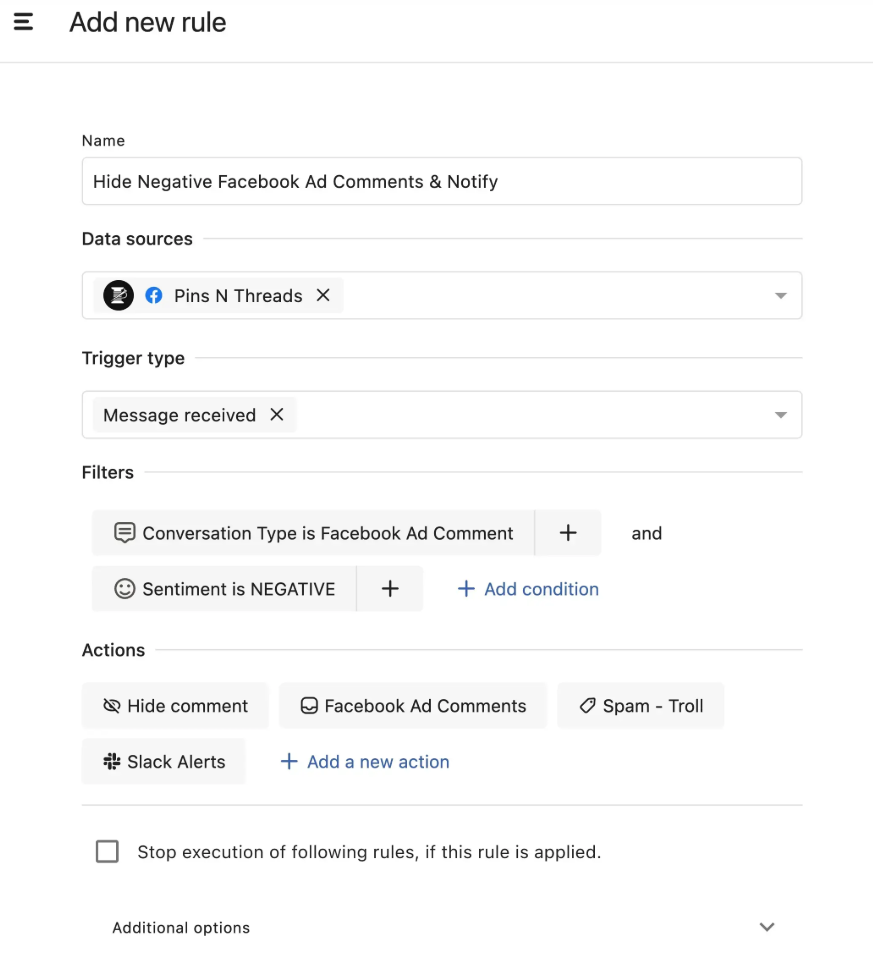
✔️ Page Moderation: You can add specific keywords that, if used in a comment, will automatically be hidden. This is a great way to stop comments on facebook containing offensive or spammy language.

✔️ Profanity Filter: Set this to “Strong” to automatically hide comments containing commonly offensive words.

✔️ Country Restrictions / Age Restrictions: These can limit who sees your posts, and therefore, who can comment.

These tools help you manage and turn off comments on facebook indirectly by filtering or restricting certain types of engagement.

Troubleshooting: "Why Can't I Turn Off Commenting on My Facebook Post?"

disabling comments on a facebook post easy step disabling comments on a facebook post easy step

Sometimes, you might find that you can’t comment on Facebook or why can’t I turn off commenting on my Facebook post. Here are common reasons and solutions:

  1. Public Post Limitations (Personal Profile): As mentioned, for personal profiles, you can restrict who can comment on a public post, but there isn’t a direct “off” switch that hides the comment section entirely while the post remains public to your friends. The closest is limiting to “Profiles and Pages you follow” which essentially makes it very restricted.
  2. Privacy Settings Conflict: Double-check your overall profile or page privacy settings. A broader setting might override a specific post’s setting.
  3. Old Facebook Interface: If you’re using an older version of Facebook, the options might be named differently or located elsewhere. Try updating your app or using the desktop version.
  4. Facebook Bug: Occasionally, Facebook experiences glitches. Try again later or clear your browser’s cache.
  5. Limited Audience: If the post’s audience is set to “Only Me,” then by definition, no one else can comment.

If you can’t comment on Facebook at all (as a user), it might be due to a temporary ban, an issue with your account, or the post’s settings.

Other Comment Management Tips

Beyond simply turning comments off on Facebook, there are other ways to manage engagement:

✔️ Hiding Comments: If a comment is inappropriate but you don’t want to delete it or engage with the commenter, you can hide comment on Facebook. The commenter and their friends can still see it, but others cannot.

✔️ To do this: Hover over the comment, click the three dots, and select “Hide comment.”

✔️ What does hiding a comment do on Facebook? It makes the comment invisible to everyone except the commenter and their friends.

✔️ Can someone see if I hide their comment on Facebook? They can still see it on their end.

✔️ Deleting Comments: For truly offensive or spammy comments, you can delete comments on Facebook. This removes the comment entirely.

✔️ To do this: Hover over the comment, click the three dots, and select “Delete.”

✔️ How to remove a comment on FB or how do you delete a comment on facebook is simply by using this option.

✔️ Blocking Someone from Commenting: If a specific person is repeatedly problematic, you can block comments from someone on Facebook by blocking the user entirely.

✔️ Can you block someone from commenting on Facebook? Yes, by blocking them, they cannot interact with your profile or page at all.

✔️ Muting Facebook Posts: While not directly comment-related, you can mute facebook posts from specific profiles or pages in your news feed, meaning you won’t see their updates, which includes their comments on other posts you might be mutual on.

✔️ Pinning Comments: On pages, you can pin a comment on FB to the top of a post to highlight important information or a positive interaction.

✔️ Turning On All Comments: If you’ve previously restricted comments, you can always revert the settings to turn on all comments on Facebook.

❓ FAQ Section (Frequently Asked Questions)

Q1: Can I completely turn off comments on any Facebook post?

A: Yes and no. For a Facebook Page post, you can select the ‘Profiles and Pages you follow’ option in the comment settings, which effectively turns off comments for the general public. For personal profile posts, you can restrict the audience (e.g., ‘Only Friends’ or ‘Profiles and Pages you follow’) to significantly limit who can comment.

Q2: If I hide a comment, can the commenter still see it?

A: Yes. When you hide a comment, only the commenter and their friends can still see it. Other users and page admins will not see it. This is a great way to manage spam or irrelevant comments without deleting them.

Q3: How do I disable comments on Facebook Ads?

A: There is no direct “Turn Off Comments” button in Ads Manager. However, you can access the original ad post link from Ads Manager, click the three-dot menu (…) on the post, change the comment settings to ‘Profiles and Pages you follow,’ and thus restrict commenting.

Q4: Why can’t I find the option to turn off commenting on my Facebook post?

A: On a personal profile, you typically do not have a direct ‘Turn Off Comments’ option for Public posts. You must change the post’s privacy settings to restrict who can comment. If you are managing a Page post or Ad, ensure you are looking for the “Who can comment on this post?” option.

Q5: How can I manage spam or negative comments without turning them off completely?

A: You can use the ‘Page Moderation’ and ‘Profanity Filter’ settings within your Facebook Page’s ‘Settings.’ In Page Moderation, you can add specific bad keywords, and any comment containing those words will be automatically hidden.

Conclusion

Knowing how to turn off comments on Facebook posts gives you greater control over your online presence and the conversations surrounding your content. Whether you’re a personal user, a business page administrator, or an advertiser, these methods empower you to create a more focused and positive environment on Facebook.

Remember to regularly review your comment settings and adjust them as needed. With these tools, you can effectively disable comments on FB and manage your Facebook engagement with confidence.

Read More on @Mario Academy 

Get24/7 Instant Live support on Telegram | WhatsApp

Get Connected with us on Facebook | X | Instagram | YouTube Reddit |Pinterest | TikTok

Back to Top

Search For Products

Product has been added to your cart